Add and manage sources
A source is the database, API, or other system from which you sync data. Adding a source connector is the first step when you want to start syncing data with Airbyte.
Add a source connector
Add a new source connector to Airbyte.
-
In the left navigation, click Sources.
-
Click New Source.
-
Find the source you want to add. If you're not sure yet, click the Marketplace tab, then click Sample Data. Sample Data is a popular test source that generates random data.
-
Configure your connector. Every connector has different options and settings, but you normally enter things like authentication information and the location where you store your data. Two setup interfaces are possible.
-
If you use Airbyte Cloud, you can set up some connectors with help from the Connector Setup Assistant. In this case, the AI asks you questions and gives you context, and you provide the setup information. For help interacting with the AI, see Set up source connectors with AI.
-
If you use a self-managed version of Airbyte, or if the AI doesn't yet support this connector, you see a setup form and documentation. In this case, fill out the form to setup your connector, then click Set up source. Airbyte tests the source to ensure it can make a connection. Once the test completes, Airbyte takes you to the New Connection page, where you can set up a new destination connector, or choose one you previously created.
-
Modify a source connector
After you set up a source connector, you can modify it.
-
In the left navigation, click Sources.
-
Find and click the source connector you want to modify.
-
Configure your connector using the form on the left side of your screen. Every connector has different options and settings, but you normally enter things like authentication information and the location where you store your data. Use the documentation panel on the right side of your screen for help populating the form.
-
Click Test and save. Airbyte tests the source to ensure it can make a connection.
Delete a source connector
You can delete a source you no longer need.
Deleting a source connector also deletes any connections that rely on it. Data that's already in your destination isn't affected. However, reestablishing this connection later requires a full re-sync.
-
In the left navigation, click Sources.
-
Find and click the source connector you want to modify.
-
Click Delete this source.
-
In the dialog, type the name of the connector, then click Delete.
Set up source connectors with AI (BETA)
You can set up some connectors with help from an AI agent, the Connector Setup Assistant. This feature is in currently in beta. It's not enabled for all connectors and may experience minor issues.
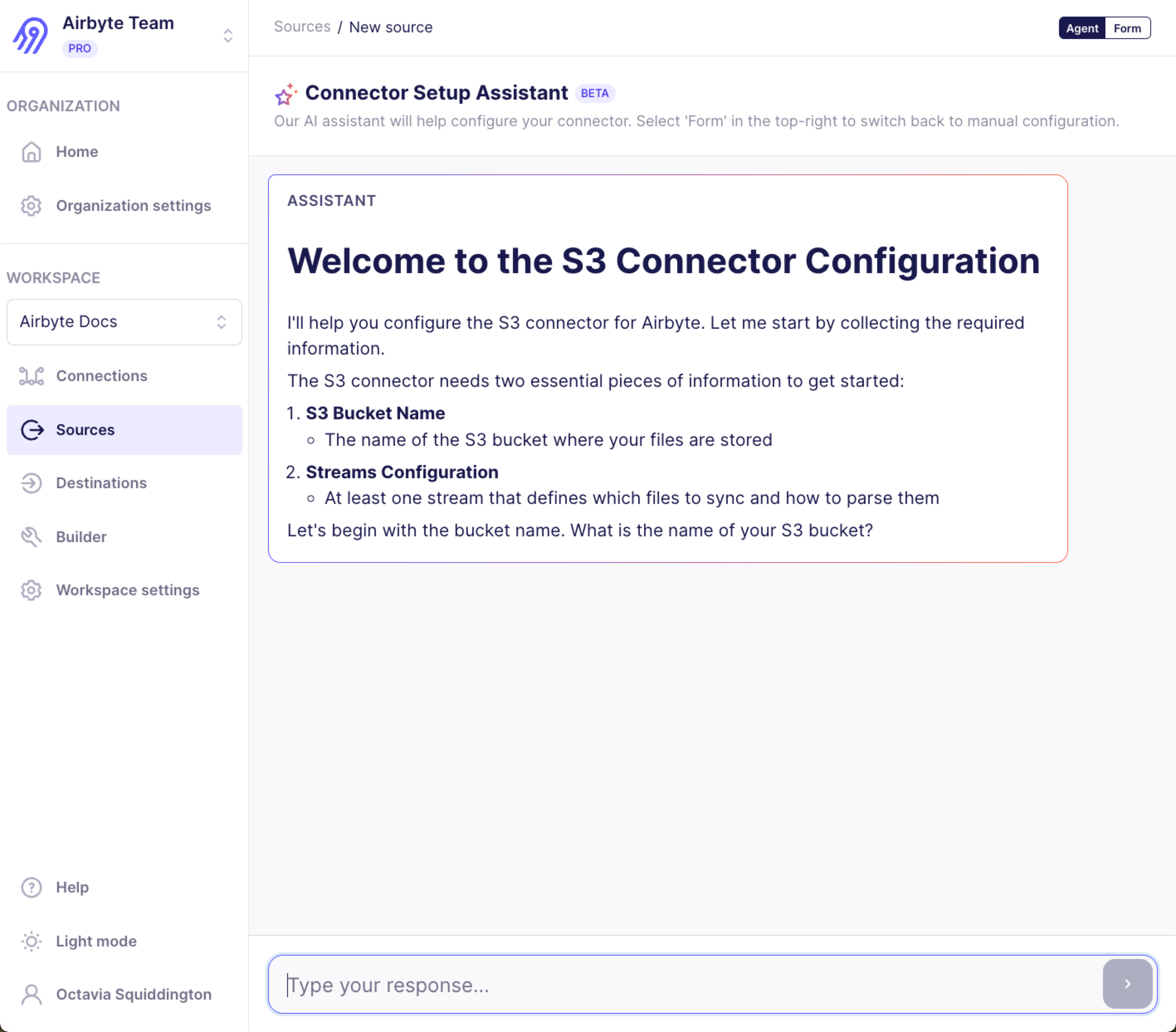
Which connectors can use the AI agent
You can use the Connector Setup Assistant while setting up any source connector that doesn't support OAuth.
Handle secrets securely
Occasionally the Connector Setup Assistant asks you to provide a secret, like a password or API key. In these situations, the chat enters secret mode and stores your response without exposing it to the agent. You know you're in this mode because the text box turns blue.
In this mode, don't type anything other than your secret. If you need to ask the AI a question, click Cancel to exit secret mode, then continue your conversation in normal mode.
Never provide a secret when secret mode is off. If you accidentally expose a secret to the agent this way, rotate that secret immediately.
Switch between agent and form modes
To switch between agent and form mode, click Agent or Form in the top right corner of the screen.
If you're partway through a conversation with the agent and switch to form mode, the form reflects the agent's progress. It's safe to switch back and forth between modes. However, the agent doesn't have access to your secrets. If you provide a secret to the agent, then revise that a secret in form mode, and then return to the agent, the agent continues to use its previously stored secret because it's unaware that the secret has changed.
Tips for conversing with the AI agent
The Connector Setup Assistant guides you through configuration by asking questions and explaining what each setting does. Here are some tips for working with it effectively.
-
When the agent asks for information, respond in natural language. You don't need to format your answers in any special way. For example, if the agent asks for your S3 bucket name, you can simply type the bucket name and press Enter.
-
Be specific and direct when answering questions. If you don't know a value the agent is asking for, say so rather than guessing. The agent can often help you find the information you need or explain where to locate it in your source system.
-
If the agent asks a question you don't understand, ask for clarification. The agent can explain what each configuration option does and why it's needed.
-
For connectors with many configuration options, the agent typically asks about required fields first.
Completing the setup
After you provide all the required configuration, the agent signals that setup is complete and Airbyte runs a connection test. If the test succeeds, Airbyte takes you to the New Connection page where you can configure your destination and start syncing data.
If the connection test fails, the agent explains the error and suggests how to fix it. You can update your configuration through the conversation or switch to form mode to make changes directly.
Limitations
The Connector Setup Assistant is currently in beta. Keep these limitations in mind:
- OAuth-based connectors are not supported. For these connectors, use the standard form-based setup.
- The agent may not have information about very recent changes to a source's API or configuration options.
- For complex edge cases, you may need to switch to form mode to complete the configuration.
Troubleshooting
-
If the agent doesn't understand your response, try rephrasing it or providing more context. You can also switch to form mode at any time to see your current progress and complete the configuration manually.
-
If you're unsure where to find a credential or configuration value the agent is asking for, ask the agent clarifying questions. The agent can often help you find the information you need or explain where to locate it in your source system.
Reuse source connectors
Connectors are reusable. In most cases, you only need to set up the connector once, and you can use it in as many connections as you need to.
In a few cases, you might need to set up the same source connector multiple times. For example, if you are pulling data from multiple accounts that have unique authentication, you need a separate connector for each account.
If you don't see the connector you need
If Airbyte doesn't have the connector you need, you can create your own. In most cases, you want to use the Connector Builder, a no-code/low-code development environment in Airbyte's UI.
Other ways to manage sources
Airbyte has other options to manage connectors, too.
In these cases, you can speed up the process by entering your values into the UI, then clicking the Copy JSON button. This copies your configuration as a JSON string that you can paste into your code.